
Loading
ShambaBoy field guide / 01
Follow a farm task from account setup to photo proof and manager approval, screen by screen.
Choose your path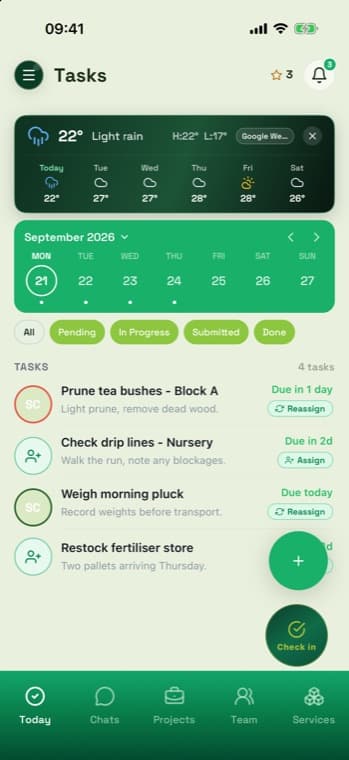
The walkthrough
A manager creates and assigns work. A worker checks in, captures proof, and submits it. The manager reviews that proof and closes the loop. The screens use demonstration farms and accounts.
Choose where to start
Use these shortcuts to reach the screens that matter to you. The full walkthrough continues below.
Skip to Part 2 if the person already has an account. A brand-new starter registers on their own phone and is then required to finish a three-step profile before they can use anything — there is no way to postpone it.
Account type is the one choice that matters here, because unlike at sign-in it really does shape the account. Worker is for people doing the work, Farmer for farm owners and managers, Institution for training bodies.
Get started stays inactive until the terms checkbox at the bottom is ticked — it sits below the button, which is easy to miss.
After the verification code, the wizard opens on Step 1 of 3 with a You / Work / Trust progress bar. Name and language carry over from registration; only date of birth is left to enter.
Note the header says Sign out, not "Back". There is no way past this wizard other than completing it or leaving the account.
The calendar greys out anything more recent than eighteen years ago, so an under-18 cannot be registered at all. Once set, the row shows the computed age back to you — "21 September 2008 · 18 years old" — which is a quick way to catch a mistyped year.
Work titles are a multi-select list of real roles — field worker, harvester, irrigation technician, crop sprayer, livestock handler, tractor operator and more. Pick everything the person can genuinely do; farms use these to match workers to jobs.
Skip for now is there, but a skipped profile means fewer job matches, so it is worth two minutes during onboarding rather than later.
Drop a pin where the person is willing to work; the app resolves it to a place name. Worth reading out during onboarding, because people ask: "Farms see the general place name. Exact coordinates are used for matching and are not shown on your public profile."
A profile photo and a government ID both help a worker get hired, but neither is required — Finish profile works without them and they can be added later from Profile. Don't hold up an onboarding session over a missing ID.
This is the step people get wrong. After finishing the profile, Faith does not get a task list. She gets a job-seeking hub: Invites 0, Applications 0, My farms 0, a "Find your next farm" banner and an Application readiness score.
Nothing from Parts 3–6 can reach her until she is on a farm — either a manager invites her, or she applies and is accepted. Compare this with Sam's screen in Part 4, who is already a member of Highland Orchards.
Register and finish the profile first, then have the manager send the farm invite, and only then walk through the task flow. Doing it the other way round leaves the new starter staring at an empty dashboard wondering what they did wrong.
There are no passwords in ShambaBoy. You sign in with your phone number and a six-digit code sent by SMS. Both Quinn and Sam sign in exactly the same way — what differs is what they see afterwards.
First launch shows three intro slides. Tap Sign in at the bottom — or Skip — to go straight to the phone entry screen. New starters who have never had an account tap Create new account on the next screen instead.
The country code +254 is fixed; type the number without its leading zero. A green "Looks like a valid number" confirms the format before you continue.
Account type matters only for new accounts. When signing in to an existing account, leave it alone — your real role comes from the farm, not this control.
On the very first sign-in the app asks for English or Kiswahili. This sets the language for sign-in, verification messages and worker guidance — so choose the one the person actually reads. It does not appear again.
The code arrives by SMS and expires after five minutes. The screen shows the last three digits of the number it went to, so you can catch a typo before waiting on a message that will never arrive. Tap Back and continue again to resend.
Once all six boxes are filled the app verifies automatically — there is nothing to press.
New accounts, and existing ones after a terms update, must accept the Terms of Use and Content Standards before they can create or upload anything. This screen cannot be dismissed — the only ways past it are accepting, signing out, or deleting the account.
The app also asks for location permission around here. Choose Allow While Using App: GPS is what stamps proof photos with where and when the work happened.
Quinn lands on Tasks with the manager's bottom bar — Today, Chats, Projects, Team, Services — and sees every task on the farm, whoever it belongs to.
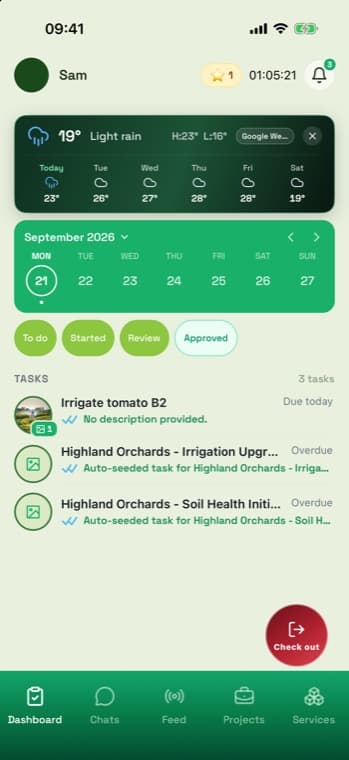
Sam lands on Dashboard with a worker's bar — Dashboard, Chats, Feed, Projects, Services — and sees only the two tasks assigned to him. If someone reports "missing" tasks, this is almost always why: workers only ever see their own.
Only managers, farm managers, farmers and admins can create tasks. Workers cannot — so the person opening a new task is always a supervisor, never the person who will carry it out.
The green + button floats over the task list. The form confirms which farm you are creating in — check that Farm at the top says the right one before typing, especially if you manage more than one.
Only two fields are required: Title and Due date. Everything else — comment, project, priority, repeats, assignment — is optional.
Titles show up truncated in list rows, so put the distinguishing detail first. "Clear drainage ditch" reads at a glance; "Highland Orchards — Irrigation Upgrade Programme, phase two" becomes "Highland Orchards - Irrigation Upgr…" and is indistinguishable from the next twenty rows.
Set the due date from the calendar — Today is one tap. Create Task stays greyed out until both required fields are filled.
It goes to the top of the list marked Due today, with a faint outline avatar and an Assign chip. Nothing has been sent to anyone yet — an unassigned task is invisible to workers.
You can assign during creation instead, using Assign workers on the form. We created it unassigned here so the two actions stay visible as separate steps.
Assignment is what puts the task on someone's phone. Until then it exists only on the manager's list.
Creation and assignment use Clear drainage ditch. The worker proof and approval screens use Sam's other assigned task, Irrigate tomato B2. The steps are the same for either task.
Tapping Assign opens the farm's worker list, each row showing job title and department — Crops, Livestock, Operations — so you can pick on capability rather than memory. Search by name when the list is long.
The chip reads Reassign on any task that already has someone on it.
The row's avatar changes to the worker's initials — SC for Sam Chebet — and the chip switches to Reassign. That avatar is how you scan a long list for unassigned work: an outline means nobody has it.
The task is still Due. Assigning does not start any clock; it just gives the work an owner.
Sam sees Irrigate tomato B2 — Due today at the top of his dashboard. His filter chips read To do, Started, Review, Approved where a manager's read Pending, In Progress, Submitted, Done. Same five states underneath, plainer words for the person doing the work.
This is the part most people miss when they first learn the app. A task cannot jump from assigned to approved — the worker has to check in and submit a photo first. Both are enforced, not advisory.
No check-in, no submit. The send button stays disabled until the worker has an open shift.
No photo, no approval. A task with no proof attached cannot be approved by anyone, however senior.
Tap Check in. The button turns red and reads Check out, and a timer starts in the header next to the worker's name — that is the open shift proof submission needs.
Check-in needs a GPS fix. On a phone with location switched off it will appear to do nothing at all, which is the single most common "the app is broken" report.
Tapping the task title opens it with a built-in three-step checklist — take photo, farm, time and device saved, submit or save offline — which ticks off as the worker goes. The header also shows who assigned it, so there is no ambiguity about who to ask.
Step 2 happens on its own: GPS, timestamp and device details are attached in the background. Nobody types them.
Use the camera for a fresh photo — the checklist says it plainly, "use the camera so proof is trusted" — or the paperclip to pick an existing one. The thumbnail appears above the composer and the send button turns green.
The note is optional but worth writing; it is the first thing the approver reads. Sending moves the task to Submitted — the chip at the top changes, the photo appears in the thread with a timestamp, and the send button goes inactive.
The task is out of the worker's hands. It sits at Submitted until someone approves or rejects it, and the worker cannot edit or resubmit while it waits.
There is no separate "mark as done" step. Approving the proof is the action that completes the task — one press sets it to approved and Done at the same moment. Nobody goes back afterwards to tick it off.
The approver must be the same person who created and assigned the task. Another manager on the same farm, with identical permissions, cannot approve it. If the wrong person holds the queue, reassign the task rather than hunting for a permission to change.
From the side menu — the ☰ button — tap Approvals. Four tabs carry live counts: All, Pending, Approved, Rejected.
Each row shows who submitted it, the proof thumbnail, how many photos, and the GPS fix with its accuracy. The pending one is marked with an amber chevron.
Tapping the row opens the photo full-width with an audit panel beneath it: how it was captured, GPS and accuracy, the time, device, app version, proof seal and manifest.
The app tells you if a photo came from the gallery rather than the camera. Here it is tagged non camera capture and Flagged, and the trust score drops to Review needed (60). It is not blocked — but it is the single most useful thing on this screen, and it is why the worker's checklist says to use the camera.
Approve closes the task: it becomes Done, moves to the Approved tab, and shows a blue double-tick everywhere. Notes are optional.
Reject sends it back to Ongoing and asks for a reason. The worker sees the note and can attach a fresh photo and resubmit — rejection is a loop, not a dead end.
Capture under Approval GPS records where the approver was standing when they signed it off. Optional, but it completes the audit trail.
The counts flip immediately — Pending empties, Approved goes from 8 to 9 — and the row's badge turns from amber to green.
On the worker's phone the task leaves the To-do list entirely and reappears under Approved with a blue double-tick. Sam's star counter also ticks up from 0 to 1. This screenshot was taken after a full app restart, so it is real saved state, not a local echo.
Rejection is a loop, not a dead end. The task goes back to the worker with the manager's reason attached, they redo it, and it comes round again. This is the path new staff find most confusing, so it is worth walking once.
Tapping Reject reveals a pink Reason for rejection field. It is technically optional — but it is the only thing the worker gets, so always write one. "Netting not visible" tells them what to reshoot; a blank rejection tells them nothing.
Tap Reject again to confirm.
The task returns to their list with a red Rejected banner, and inside it an orange card reads "Manager asked for a fix" with your exact words beneath and a Recapture proof button.
Their verification score for the task drops to 0, the proof is marked Sent back, and the app adds a nudge: "Fixing returned proof helps protect your reliability."
Behind the scenes the task returns to Ongoing with a rejected marker — it is live work again, not a closed item. Once the worker attaches a new photo and submits, it goes back to Submitted and the manager approves it exactly as in Part 6.
The app checks every proof photo and will block — not just flag — a submission for things like a reused photo. The error appears on the task list, not in the composer: "Verification submission blocked: duplicate_image".
The catch: the rejected photo stays queued in the composer, and survives closing the app. Tapping Retry just sends the same blocked photo again. Delete the old thumbnail with its ✕ before attaching a fresh one, or it will keep failing.
Every proof photo carries the GPS fix taken when it was captured, and the Farm Map plots them. It answers a question a task list cannot: where was this work actually done, and does that match where it was supposed to happen?
Each pin is one piece of submitted proof. The legend splits them: Completed in green, Submitted — still awaiting approval — in amber. The tabs count each, and a date filter narrows to a day or a range.
Two warning bars do the real work: "8 tasks missing GPS proof" and "3 pins need GPS review". The first is work you cannot place at all; the second is work whose location looks wrong.
Pins aren't generic markers — each one shows the proof photo itself, ringed in its status colour, dropped where the worker stood. The blue house is the farm's own location, so the distance between them is visible at a glance.
Here Inspect windbreak row 7 sits just off the farm with a red badge. Sam was 967 m away when he took it — and the app told him so at the time, before he submitted.
This isn't a gotcha discovered later by a manager. When proof is taken away from the farm, the worker sees "Proof captured off site" with the exact distance before it is sent.
It does not block the submission — there are good reasons to be off site — but both people now see the same fact.
Tapping a pin names the task and who submitted it, and offers Review GPS for a location that needs a second look, or View task details to open the full proof and approve or reject it.
So the map is a third route into the same decision as Part 6 — useful when you are checking a day's work by place rather than by list.
A task only appears on the map once proof has been submitted — a created or assigned task has no location yet. That is why the map's totals are smaller than the task list's, and why "missing GPS proof" is a normal state for work still in progress rather than an error.
Every task is in exactly one of these. Managers and workers see different words for the same state, which is worth knowing before you try to talk someone through a screen you cannot see.
| Manager sees | Worker sees | What it means | Who moves it next |
|---|---|---|---|
| Due | To do |
Created, not started. "Submit photos when done." | Worker |
| Ongoing | Started |
Work underway, or proof was rejected and is being redone. | Worker |
| Submitted | Review |
Proof is in, waiting on the approver. "Your proof is in review." | Manager |
| Done | Approved |
Approved and complete. Shows a blue double-tick. Nothing further to do. | Closed |
| Rejected | Rejected |
"Supervisor requested changes. Review the notes and resubmit." | Worker |
These are common support questions on this flow.
No proof photo is attached. Approval is locked until there is at least one. Ask the worker to attach a photo and resubmit — there is no override.
They aren't checked in. The send button needs an open shift. Check the header for a running timer; if there isn't one, tap Check in first — and confirm location is switched on, because check-in fails silently without GPS.
Only the person who created and assigned the task can approve it. This is not a permissions gap to escalate. Have the original manager approve it, or reassign the task.
Workers only see tasks assigned to them. An unassigned task is invisible to everyone but supervisors. Check the task has an avatar rather than an empty outline.
They aren't on a farm yet. If their dashboard shows "My farms 0" and a "Find your next farm" banner, that's the problem — not a bug. A manager needs to invite them, or they need to apply and be accepted. See Part 1.
The terms checkbox isn't ticked. It sits below the button, so it's routinely missed.
Screenshots captured on iOS in September 2026. Screens and wording may vary with app updates. Demonstration farms and accounts are used throughout.